My Profile
You can click My Profile in the user menu to view or edit your profile. On the My Profile page, the following options are available:
Investigator Profile
Click the Investigator Profile button to view your comprehensive investigator profile.
This view-only profile compiles the experience and qualification information you’ve submitted in CIRBI submissions and your user profile. The profile is organized into sections including Research Protections, Staff & Resources, Research Phases, Regulatory Inspect Information, and other types of information you’ve submitted about yourself and your site in CIRBI. The information in the investigator profile is view-only. When you submit new information about yourself or edit your existing information in CIRBI, your investigator profile is automatically updated to reflect the latest information.
Note that if you haven’t submitted any PI-related experience and qualification information about yourself in CIRBI (which is likely if you aren’t a PI), you don’t have an investigator profile and the Investigator Profile button isn’t available in your user profile.
Edit Profile Details
Click the Edit Profile Details button to edit your profile.
When you've entered edit mode, you can edit fields related to your personal information, organization, credentials, and license. Some information you enter here is automatically copied into the submission details of any submissions to which you’ve been added as a contact unless you edit them at the submission level. To save your changes, click the Save and Update button.
Profile Photo
You can upload a profile picture in the Profile Photo section.
Click the Upload Photo button and then drag and drop the photo or click Browse to browse your computer for the photo. Photos must be in .png, .jpg, .jpeg, or .svg format. You can enter a title for your photo in the Document Title field. If you leave this field blank, the file name is used as the title. To finish, click Submit Document and then click Save and Update.
To remove your profile photo, click the Remove Photo button.
CV
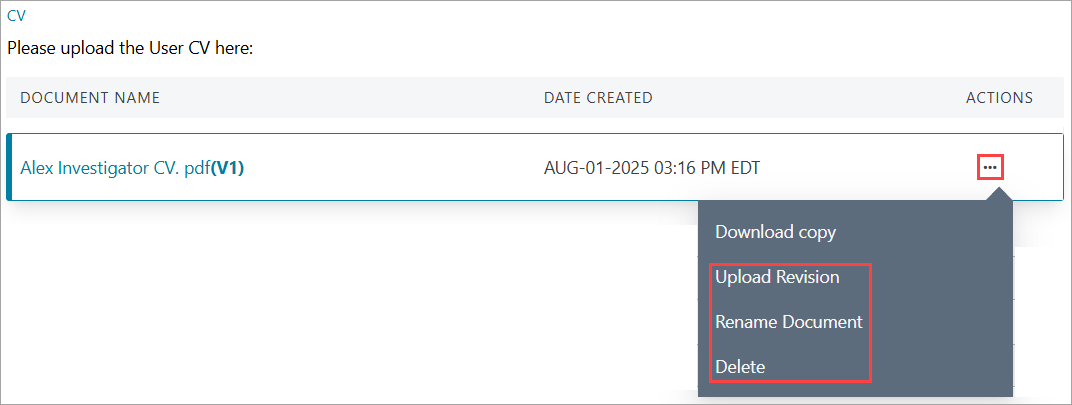
In the CV section, you can view and manage your CV and view the date it was uploaded to CIRBI. The CV document version is appended to the document name link. If you’re a PI, your CV is automatically applied to some submission types to which you’re assigned as the principal investigator. To download a copy of your CV, click the three dots icon to the right of your CV file and then click the “Download copy” link.
When you've entered edit mode, you can also upload a revision to your CV, rename your CV, or delete your CV by clicking the three dots icon and then clicking the "Upload Revision," "Rename Document," or "Delete" link.
Change Email
Clicking the Change Email button allows you to change your email address.
To change your email address, complete the following steps:
- Click the Change Email button.
- On the page that opens, enter your new email address and then enter your password.
- Click the Confirm button. Your email address is changed.
Update Password
Clicking the Update Password button allows you to change your password.
To update your password, complete the following steps:
- Click the Update Password button.
- On the page that opens, enter your current password and then enter and confirm your new password. Your new password must adhere to the listed requirements and can’t be the same as your previous 5 passwords.
- Click the Confirm button. Your password is updated.
Update Security Details
Clicking the Update Security Details button allows you to change your security question and answer.
To update your security details, complete the following steps:
- Click the Update Security Details button.
- In the right slider that opens, select a new security question from the drop-down list.
- Enter a new answer to the security question in the free-text field.
- Click the Submit button. Your security details are updated.